:article_outdated: True
Creating iOS plugins
This page explains what iOS plugins can do for you, how to use an existing plugin, and the steps to code a new one.
iOS plugins allow you to use third-party libraries and support iOS-specific features like In-App Purchases, GameCenter integration, ARKit support, and more.
Loading and using an existing plugin
An iOS plugin requires a .gdip configuration file, a binary file which can be either .a static library or .xcframework containing .a static libraries, and possibly other dependencies. To use it, you need to:
-
Copy the plugin's files to your Godot project's
res://ios/pluginsdirectory. You can also group files in a sub-directory, likeres://ios/plugins/my_plugin. -
The Godot editor automatically detects and imports
.gdipfiles insideres://ios/pluginsand its subdirectories. -
You can find and activate detected plugins by going to Project -> Export... -> iOS and in the Options tab, scrolling to the Plugins section.
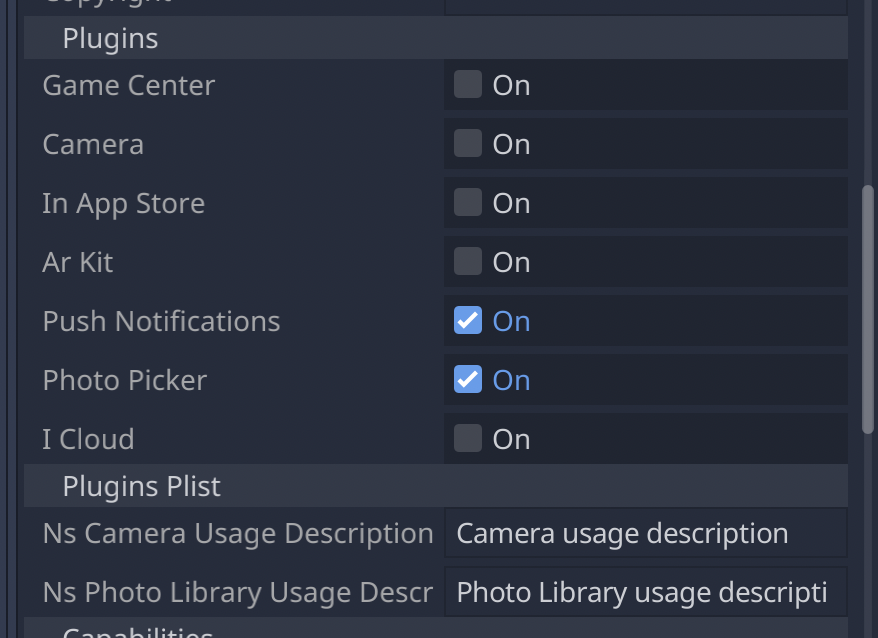
When a plugin is active, you can access it in your using Engine.get_singleton()
if Engine.has_singleton("MyPlugin"):
    var singleton = Engine.get_singleton("MyPlugin")
    print(singleton.foo())
The plugin's files have to be in the res://ios/plugins/ directory or a subdirectory, otherwise the Godot editor will not automatically detect them.
Creating an iOS plugin
At its core, a Godot iOS plugin is an iOS library (.a archive file or .xcframework containing static libraries) with the following requirements:
-
The library must have a dependency on the Godot engine headers.
-
The library must come with a
.gdipconfiguration file.
An iOS plugin can have the same functionality as a Godot module but provides more flexibility and doesn't require to rebuild the engine.
Here are the steps to get a plugin's development started. We recommend using Xcode as your development environment.
The Godot iOS Plugins <https://github.com/godotengine/godot-ios-plugins>_.
The Godot iOS plugin template gives you all the boilerplate you need to get your iOS plugin started.
To build an iOS plugin:
-
Create an Objective-C static library for your plugin inside Xcode.
-
Add the Godot engine header files as a dependency for your plugin library in
HEADER_SEARCH_PATHS. You can find the setting inside theBuild Settingstab:-
Download the Godot engine source from the Godot GitHub page .
-
Run SCons to generate headers. You can learn the process by reading doc_compiling_for_ios. You don't have to wait for compilation to complete to move forward as headers are generated before the engine starts to compile.
-
You should use the same header files for iOS plugins and for the iOS export template.
-
-
In the
Build Settingstab, specify the compilation flags for your static library inOTHER_CFLAGS. The most important ones are-fcxx-modules,-fmodules, and-DDEBUGif you need debug support. Other flags should be the same you use to compile Godot. For instance:
-DPTRCALL_ENABLED -DDEBUG_ENABLED -DDEBUG_MEMORY_ALLOC -DDISABLE_FORCED_INLINE -DTYPED_METHOD_BIND
-
Add the required logic for your plugin and build your library to generate a
.afile. You will probably need to build bothdebugandreleasetarget.afiles. Depending on your needs, pick either or both. If you need both debug and release.afiles, their name should match following pattern:[PluginName].[TargetType].a. You can also build the static library with your SCons configuration. -
The iOS plugin system also supports
.xcframeworkfiles. To generate one, you can use a command such as:
xcodebuild -create-xcframework -library [DeviceLibrary].a -library [SimulatorLibrary].a -output [PluginName].xcframework
-
Create a Godot iOS Plugin configuration file to help the system detect and load your plugin:
- The configuration file extension must be
gdip(e.g.:MyPlugin.gdip).
- The configuration file extension must be
- The configuration file format is as follow
[config]
name="MyPlugin"
binary="MyPlugin.a"

initialization="init_my_plugin"
deinitialization="deinit_my_plugin"

[dependencies]
linked=[]
embedded=[]
system=["Foundation.framework"]

capabilities=["arkit", "metal"]

files=["data.json"]

linker_flags=["-ObjC"]

[plist]
PlistKeyWithDefaultType="Some Info.plist key you might need"
StringPlistKey:string="String value"
IntegerPlistKey:integer=42
BooleanPlistKey:boolean=true
RawPlistKey:raw="
<array>
    <string>UIInterfaceOrientationPortrait</string>
</array>
"
StringPlistKeyToInput:string_input="Type something"
The config section and fields are required and defined as follow:
-
name: name of the plugin
-
binary: this should be the filepath of the plugin library (
aorxcframework) file.- The filepath can be relative (e.g.:
MyPlugin.a,MyPlugin.xcframework) in which case it's relative to the directory where thegdipfile is located. - The filepath can be absolute:
res://some_path/MyPlugin.aorres://some_path/MyPlugin.xcframework. - In case you need multitarget library usage, the filename should be
MyPlugin.aand.afiles should be named asMyPlugin.release.aandMyPlugin.debug.a. - In case you use multitarget
xcframeworklibraries, their filename in the configuration should beMyPlugin.xcframework. The.xcframeworkfiles should be named asMyPlugin.release.xcframeworkandMyPlugin.debug.xcframework.
- The filepath can be relative (e.g.:
The dependencies and plist sections are optional and defined as follow:
-
dependencies:
-
linked: contains a list of iOS frameworks that the iOS application should be linked with.
-
embedded: contains a list of iOS frameworks or libraries that should be both linked and embedded into the resulting iOS application.
-
system: contains a list of iOS system frameworks that are required for plugin.
-
capabilities: contains a list of iOS capabilities that is required for plugin. A list of available capabilities can be found at Apple UIRequiredDeviceCapabilities documentation page .
-
files: contains a list of files that should be copied on export. This is useful for data files or images.
-
linker_flags: contains a list of linker flags to add to the Xcode project when exporting the plugin.
-
-
plist: should have keys and values that should be present in
Info.plistfile.- Each line should follow pattern:
KeyName:KeyType=KeyValue - Supported values for
KeyTypearestring,integer,boolean,raw,string_input - If no type is used (e.g.:
KeyName="KeyValue")stringtype will be used. - If
rawtype is used value for corresponding key will be stored inInfo.plistas is. - If
string_inputtype is used you will be able to modify value in Export window.
- Each line should follow pattern: